Home Let students adjust
Let students adjust
Tap the highlighted part of the screen.
Unfreezing the teams
Best seen on a laptopIf many students are unhappy after you rearrange the teams, you may unfreeze them, put up a notice asking students to make their changes, and give a clear date when you will freeze again. Freezing is separate from choosing the area, but big changes to a team after its area is chosen may mean choosing a new area.
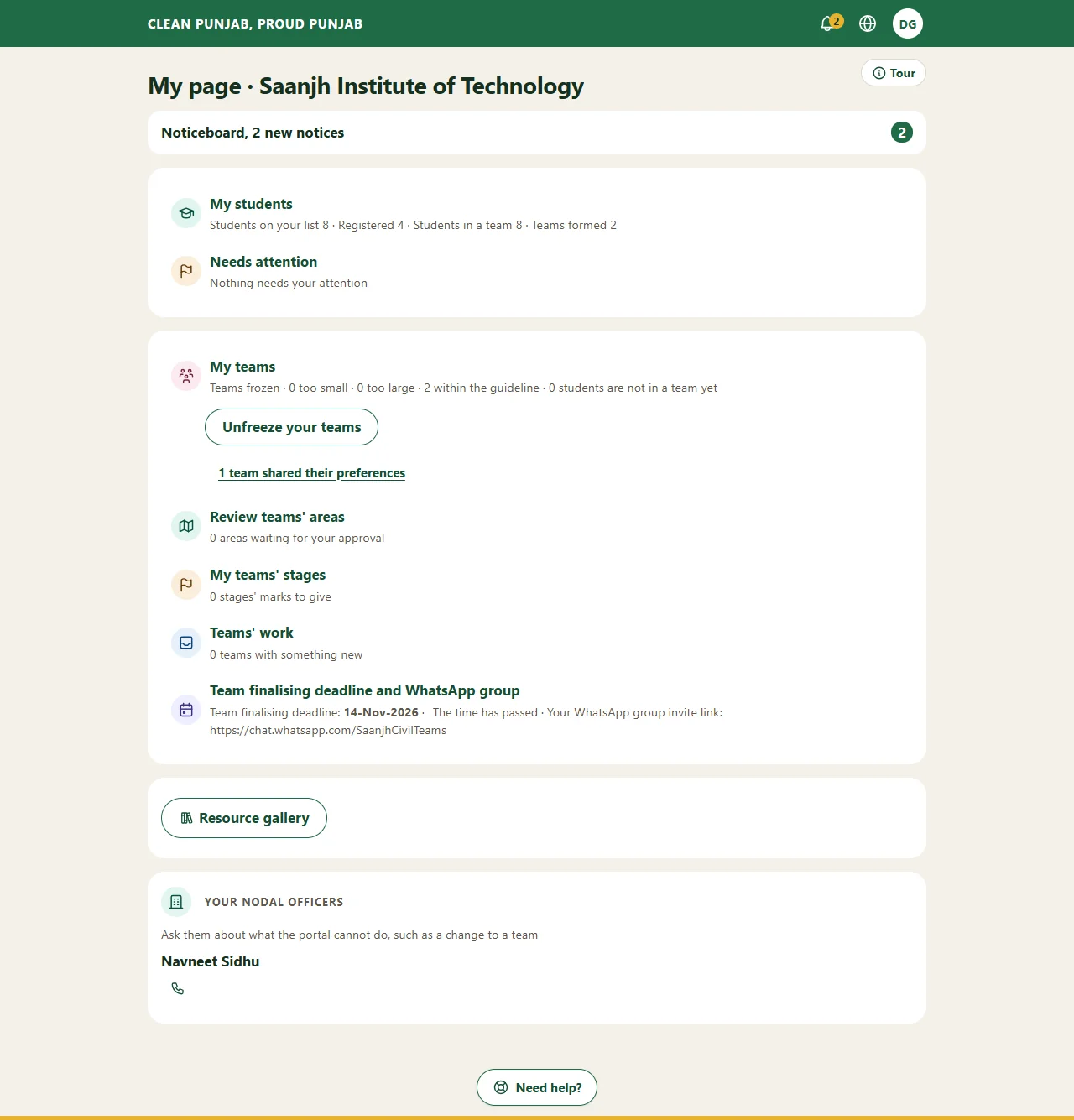
Still frozen
There are now two teams, and they are frozen.
Tap Unfreeze your teams.
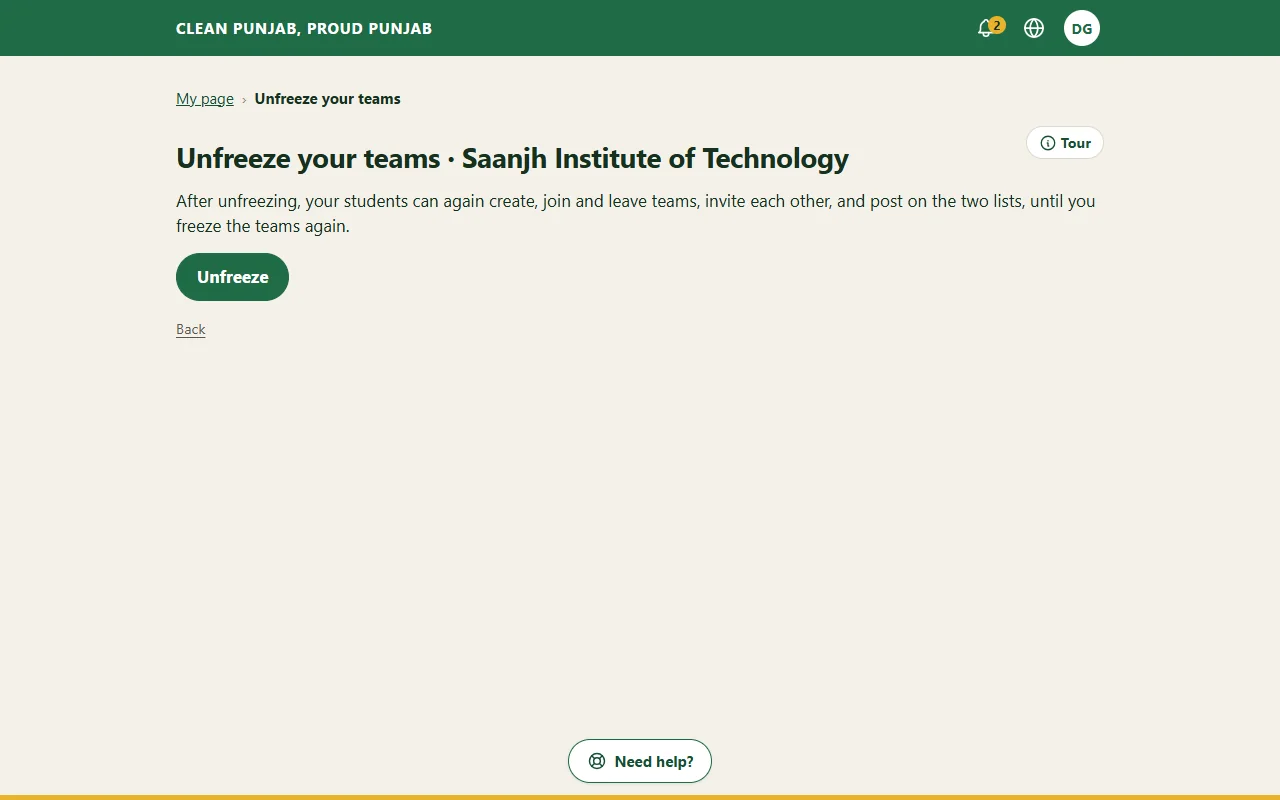
What unfreezing does
This page explains that students can change their teams again, until you freeze them.
Tap Unfreeze.
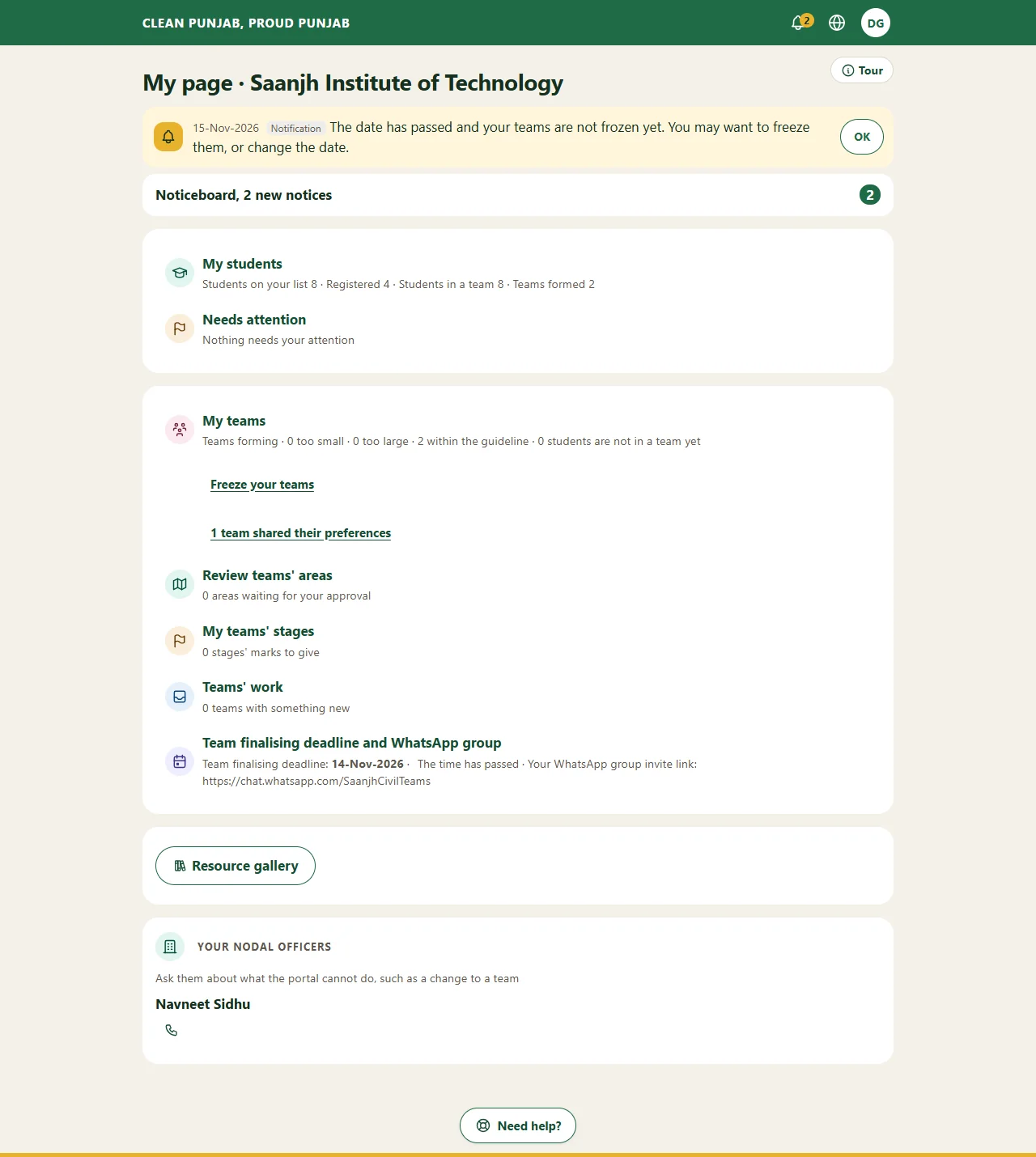
Open again
The teams are open. Students can make their changes. Daljit sets a new team finalising deadline, and freezes the teams again after it.
Two rounds
It helps to settle the teams in a couple of rounds, so that students know where they stand.
In this topic (scroll down for more topics)
: topics
Back to the portal Back to the guide Home: choose another section
Link copied. Paste it into a message.