Home Choose our area
Choose our area
Tap the highlighted part of the screen.
Choosing the area
Best seen on a phoneBefore you draw anything, it helps to walk the streets together and agree where your team will work: streets everyone can reach, with enough homes. Your team's leader then draws the area on the portal, and your supervisor approves it. Here, Student Harleen, who leads team Ravi, draws Gurdev Nagar.
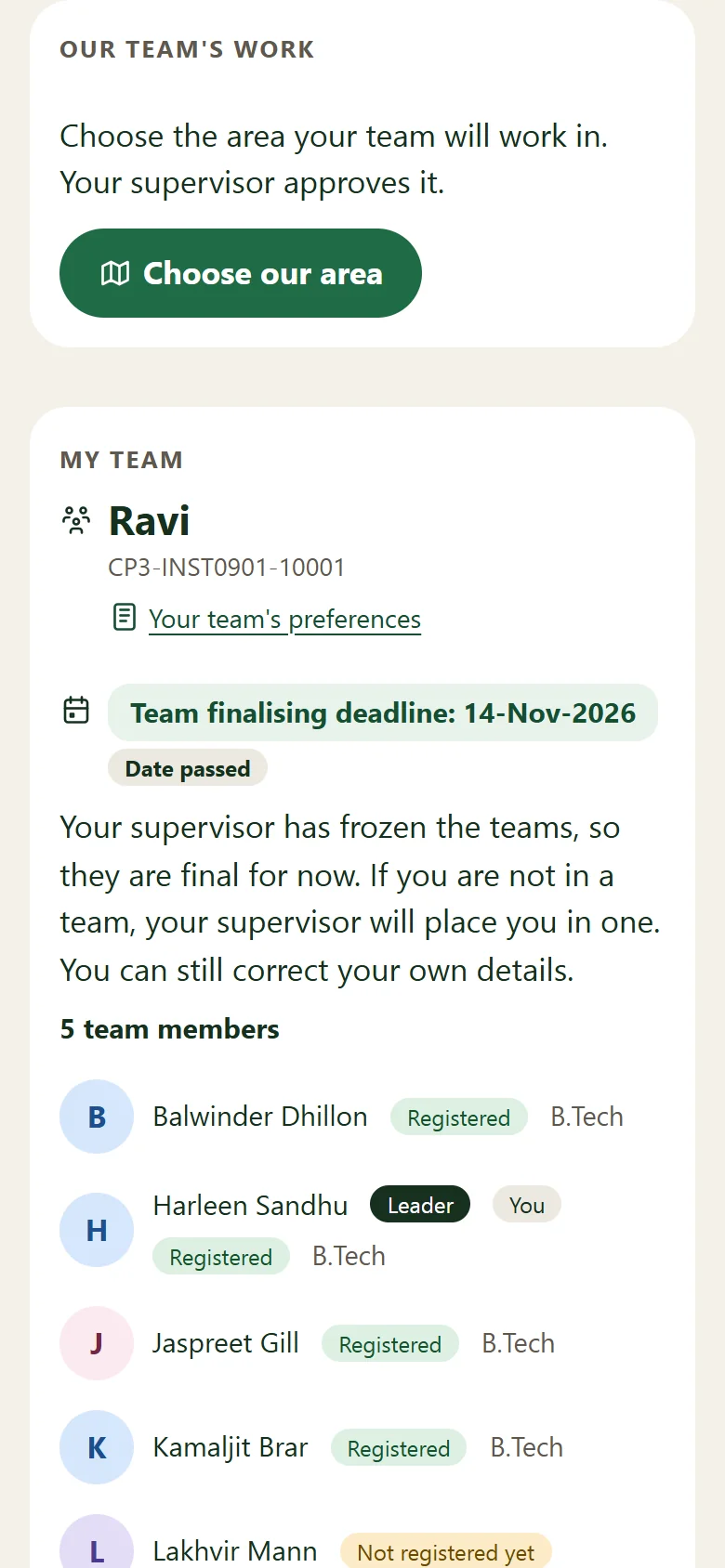
My page
Our team's work asks the team to choose the area it will work in.
Tap Choose our area.
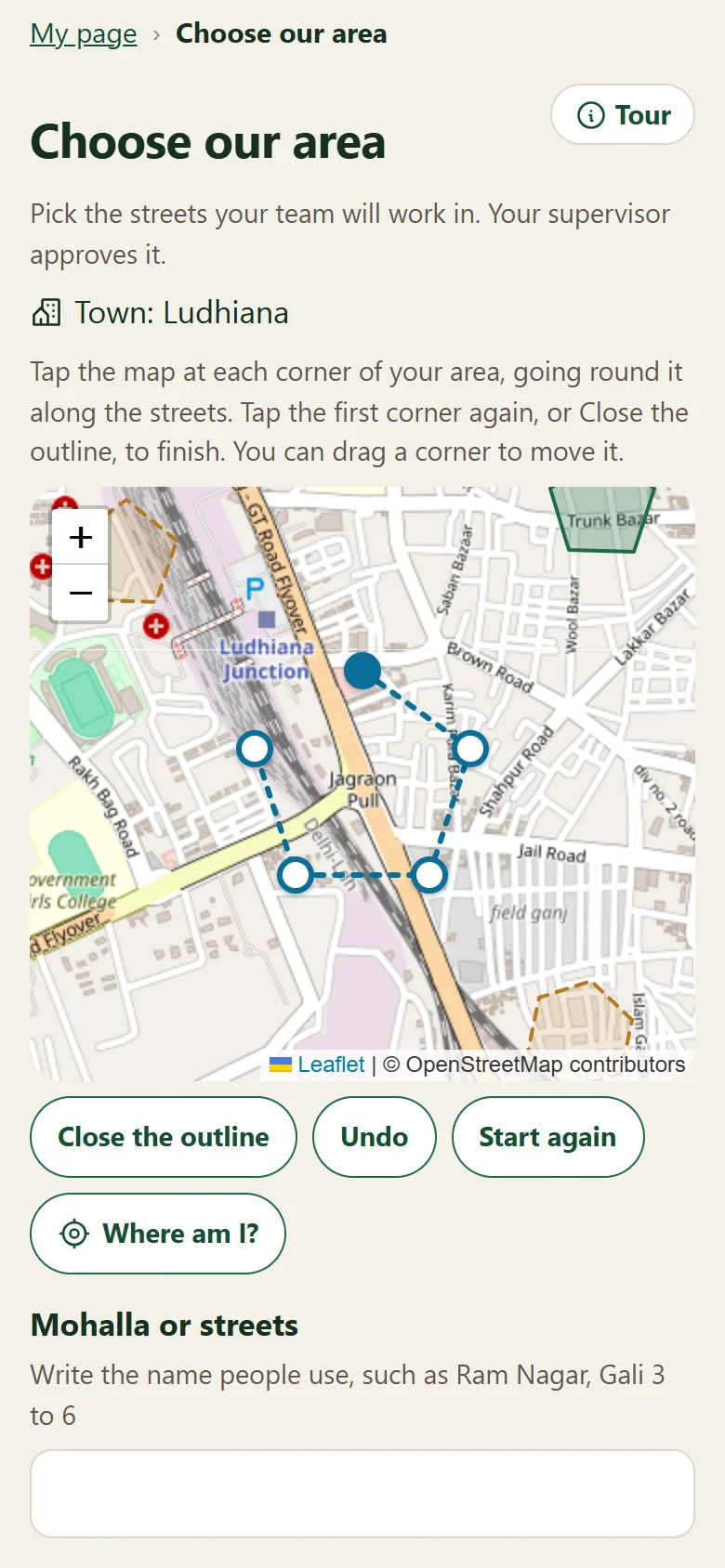
Round the streets
The map opens on the town, Ludhiana. Harleen taps at each corner, going round the area along the streets. Other teams' areas show too: dashed while they wait for approval, solid green once approved.
Tap Close the outline.
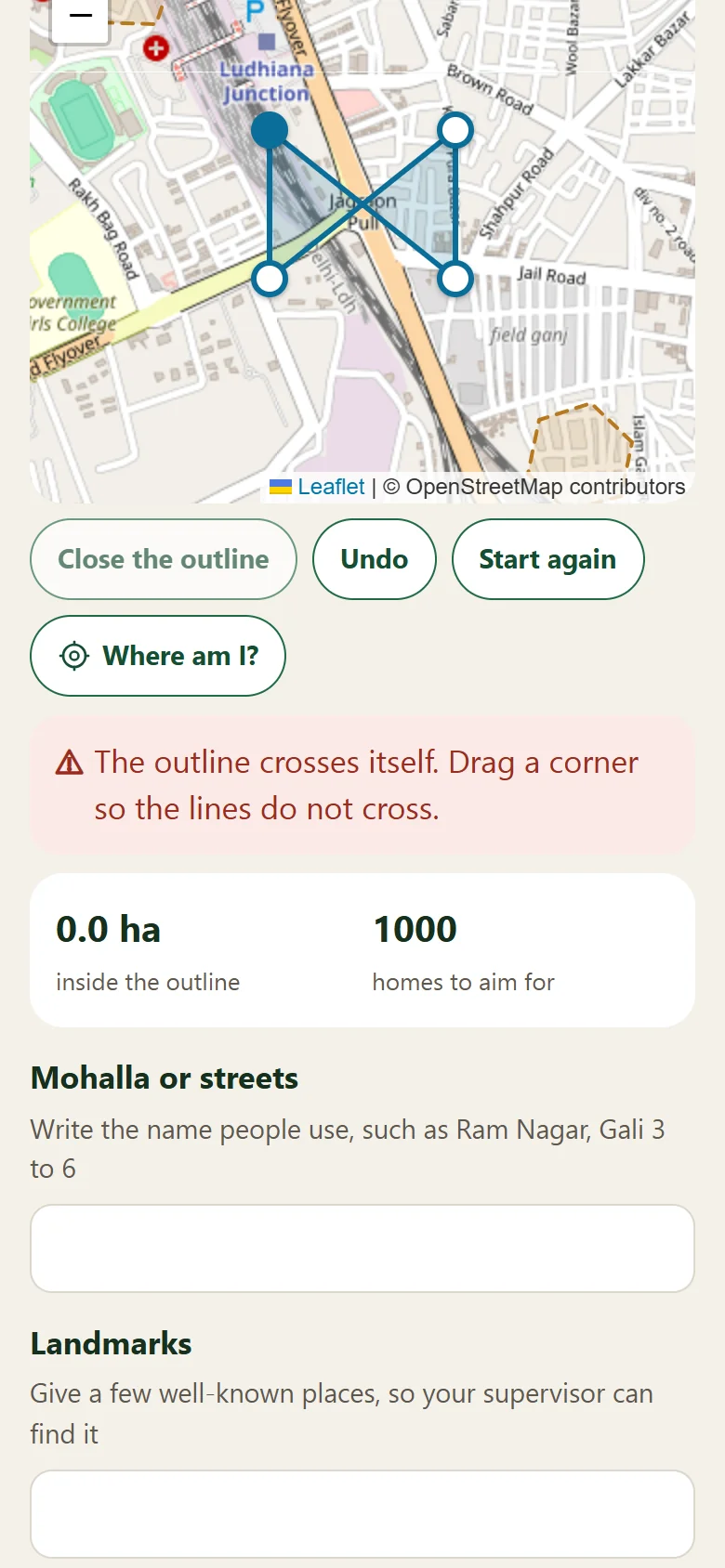
The lines cross
If the outline crosses itself, the portal says so in red, and the area cannot be sent. Undo removes the last corner, and Start again clears them all.
Tap Undo.
Names people use
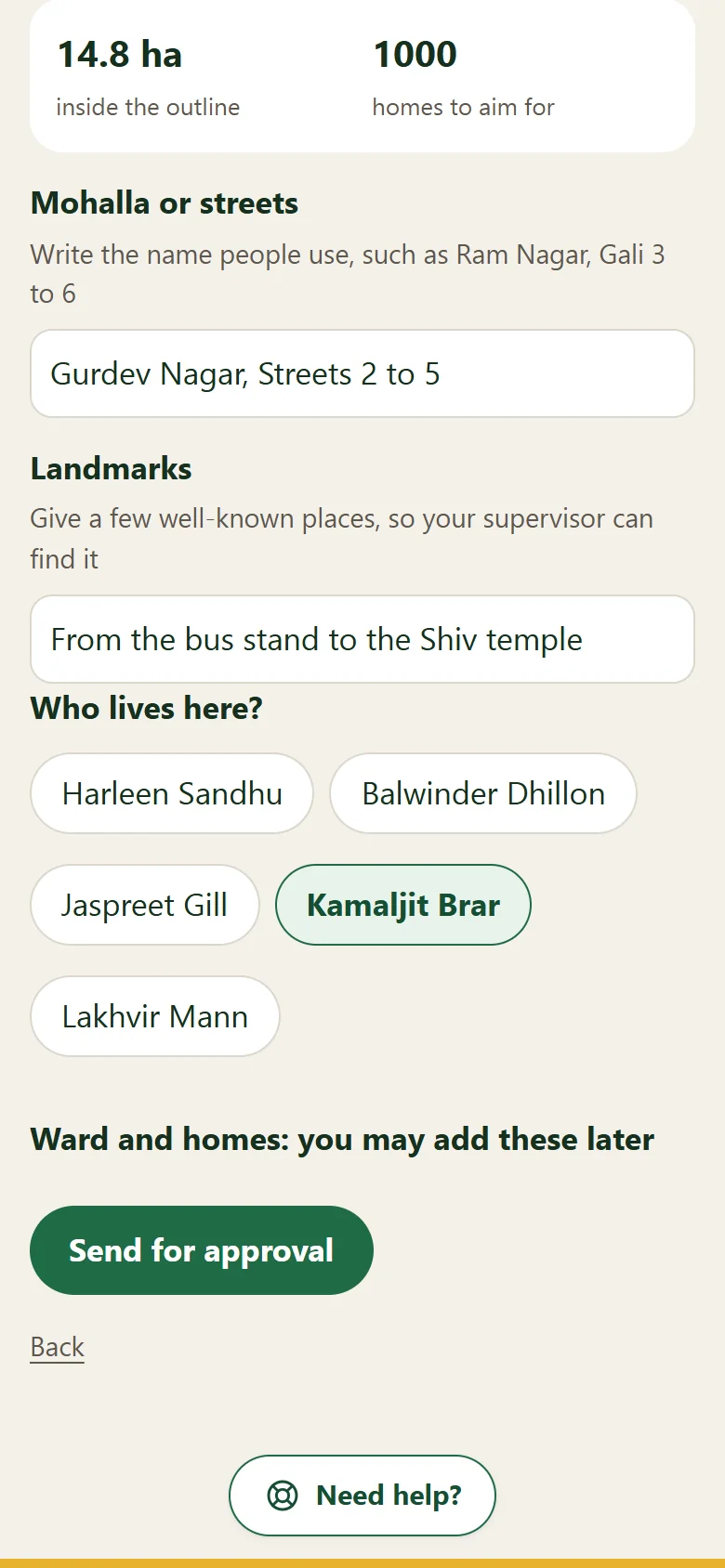
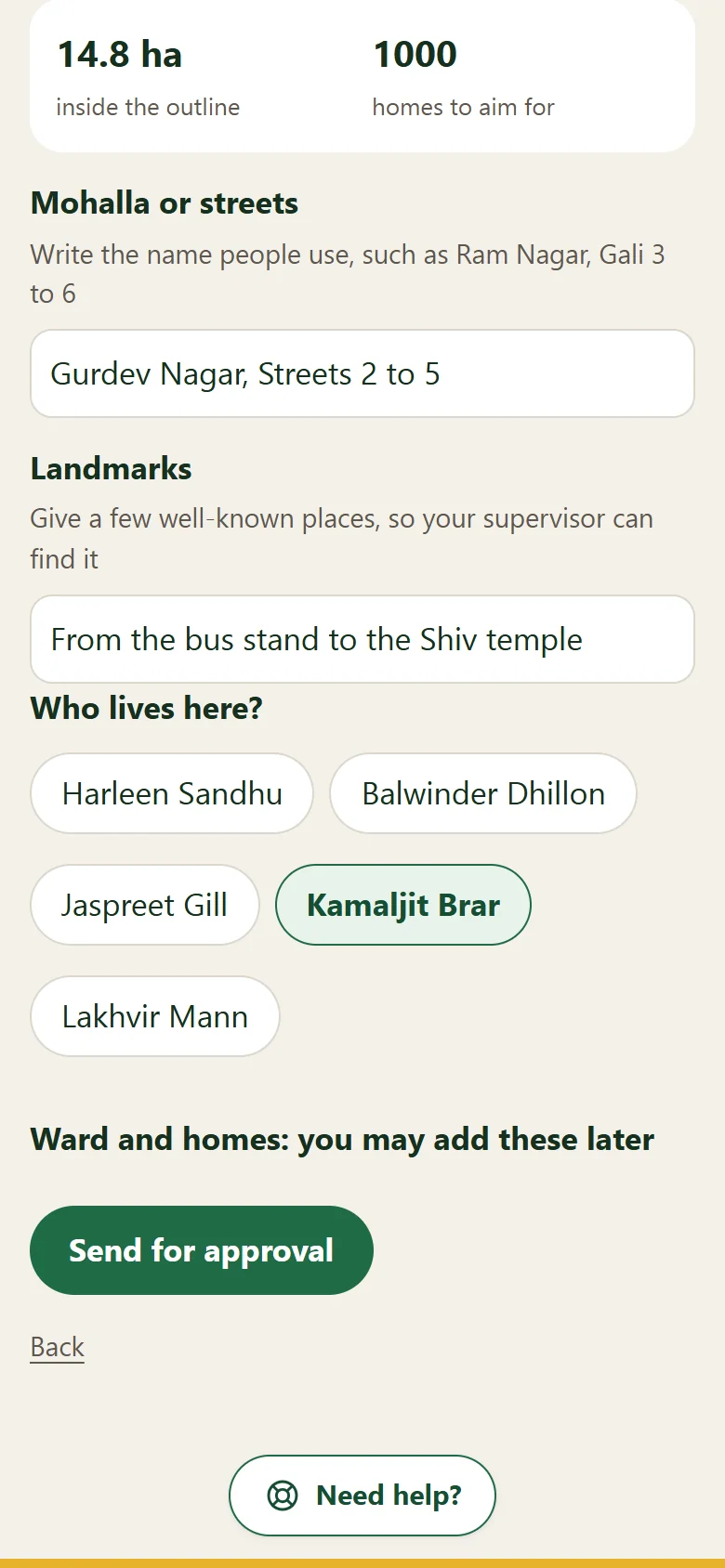
Under Mohalla or streets, Harleen writes the name people use: Gurdev Nagar, Streets 2 to 5. Under Landmarks, a few well-known places help Supervisor Daljit find it.
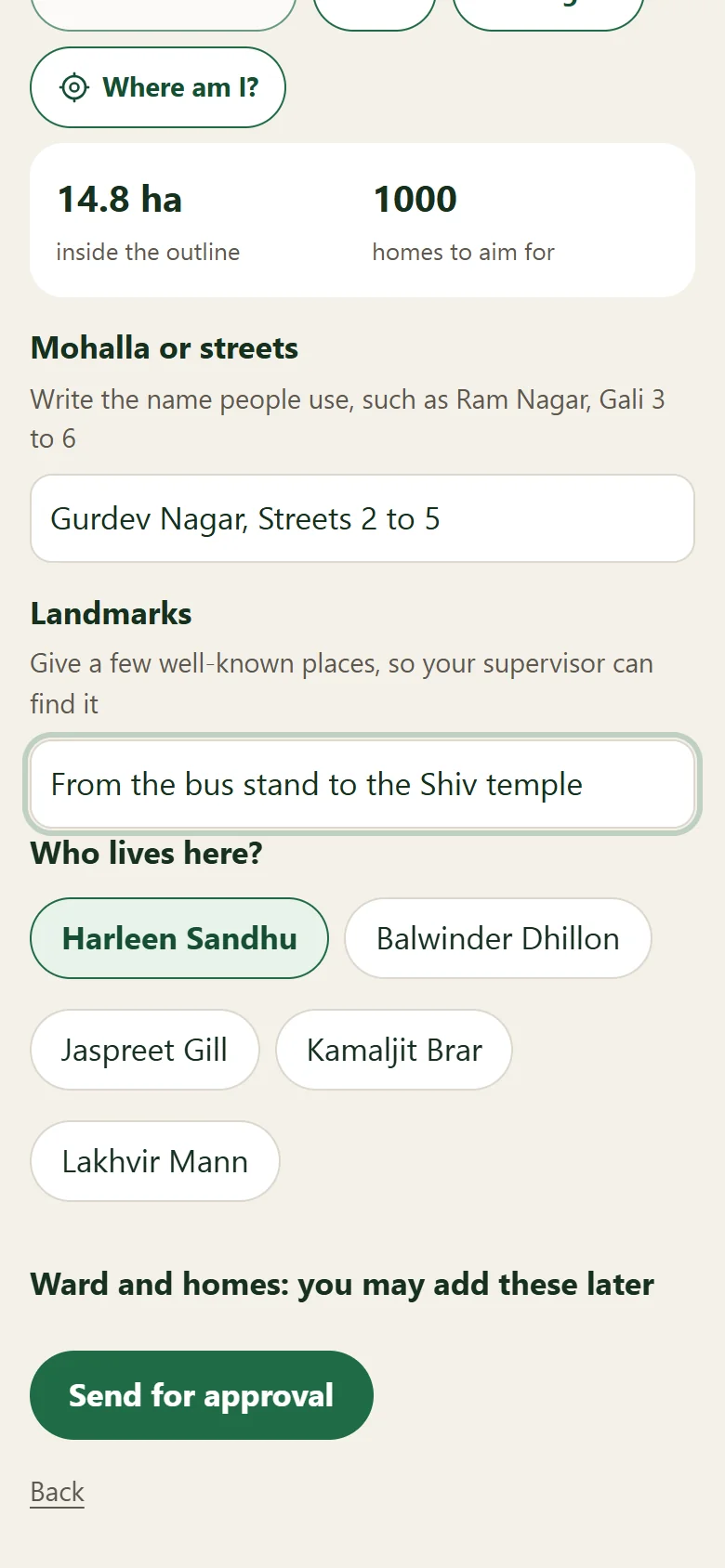
Who lives here?
The portal shows the size of the area, and about how many homes to aim for, as a guide. Kamaljit lives in the area, so Harleen taps Kamaljit's name. The ward and the number of homes may be added later.
Send it
Everything is filled in.
Tap Send for approval.
Waiting for approval
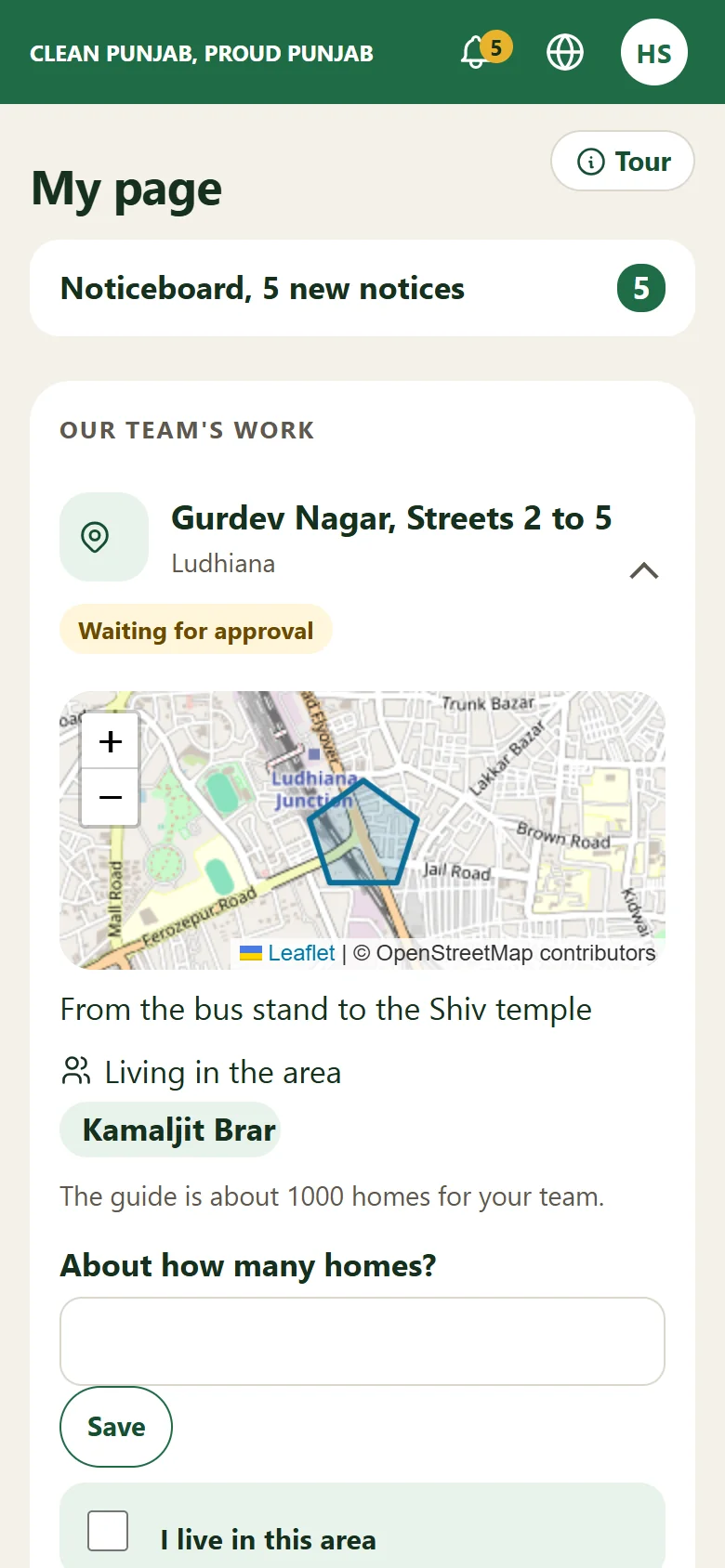
My page shows the area, waiting for approval, with Kamaljit under Living in the area. About how many homes there are may be added at any time.
Your supervisor's turn
Supervisor Daljit approves the area, or sends it back with a reason. The next topic shows both.
In this topic (scroll down for more topics)
- 1Choosing the area
- 2My page
- 3Round the streets
- 4The lines cross
- 5Names people use
- 6Who lives here?
- 7Send it
- 8Waiting for approval
- 9Your supervisor's turn
: topics
Back to the portal Back to the guide Home: choose another section
Link copied. Paste it into a message.