Home After the freeze
After the freeze
Tap the highlighted part of the screen.
Once the teams are frozen
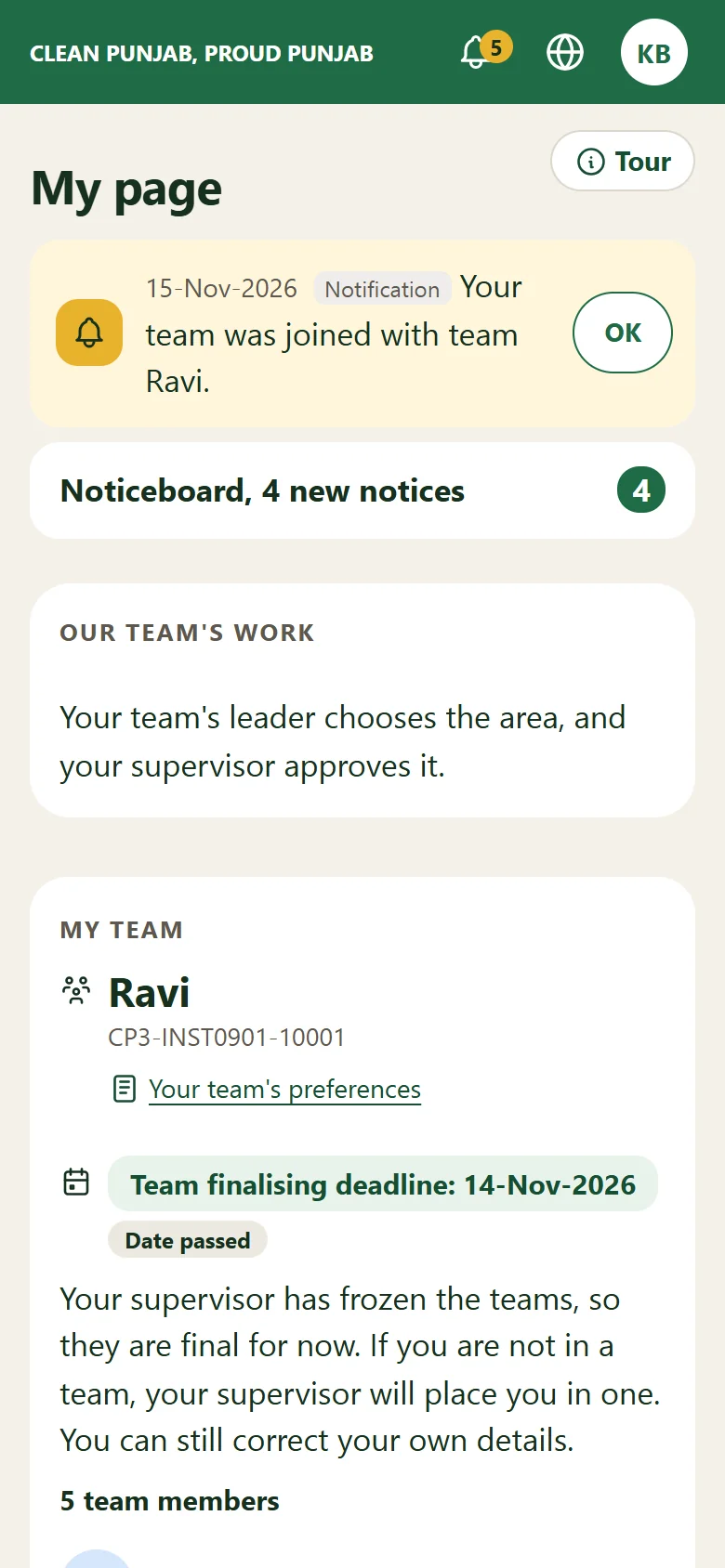
Best seen on a phoneOnce the teams are frozen, your team stays as it is, and only your supervisor can change it. If anything changes, a notification tells you. Here, Student Kamaljit's team has been joined with team Ravi.
My page
A Notification on Kamaljit's My page says the team was joined with team Ravi.
Frozen
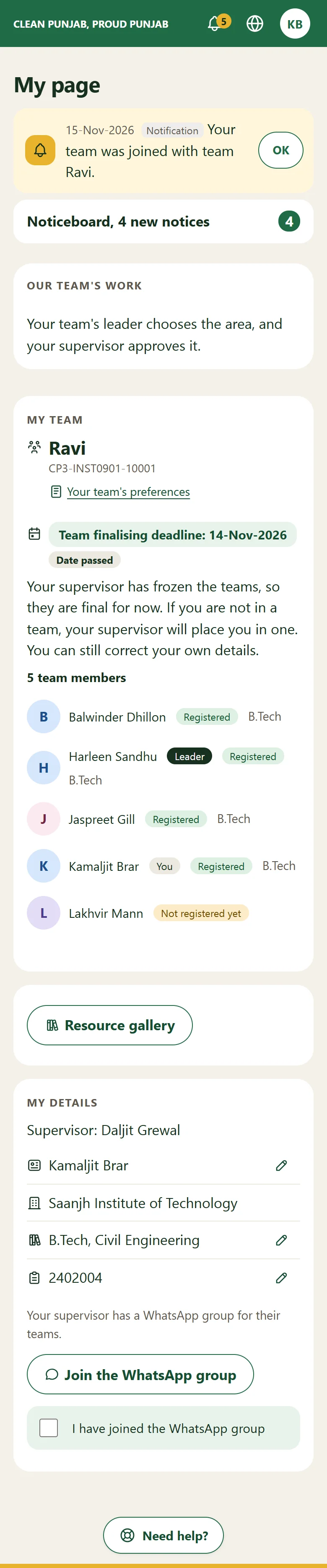
Under My team, the portal says the supervisor has frozen the teams, so they are final for now. Supervisor Daljit has made Harleen the team's leader. The team's buttons are gone, but Kamaljit can still correct their own details.
The noticeboard
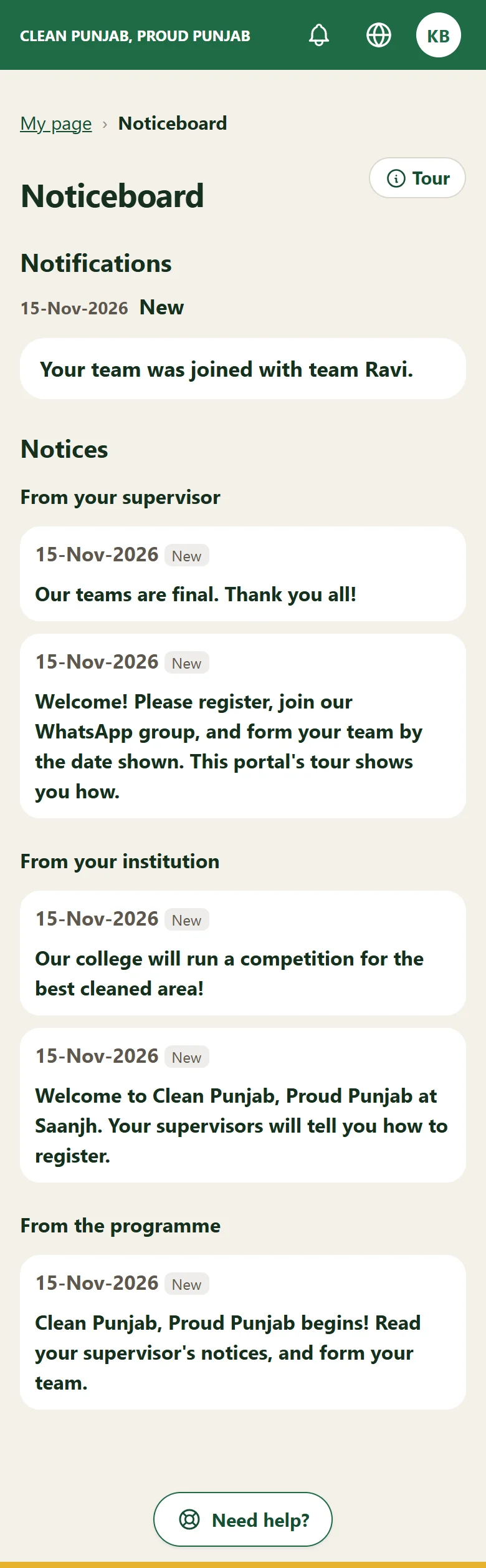
The notification can also be read on the Noticeboard.
Tap Noticeboard.
Notifications, then notices
The noticeboard shows Notifications first, then Notices from the supervisor, the institution and the programme. Here, the institution announces a competition for the best cleaned area.
Next: your area
Your team is formed. Next, your team chooses the streets it will work in, and your supervisor approves them. If something about your team needs to change, you may ask your supervisor.
In this topic (scroll down for more topics)
- 1Once the teams are frozen
- 2My page
- 3Frozen
- 4The noticeboard
- 5Notifications, then notices
- 6Next: your area
: topics
Back to the portal Back to the guide Home: choose another section
Link copied. Paste it into a message.