Home A student registers
A student registers
Tap the highlighted part of the screen.
Registering
Best seen on a phoneYour supervisor puts your name on a list and asks you to register. Keep your phone with you, for the code that comes by SMS. Here, Student Balwinder registers.
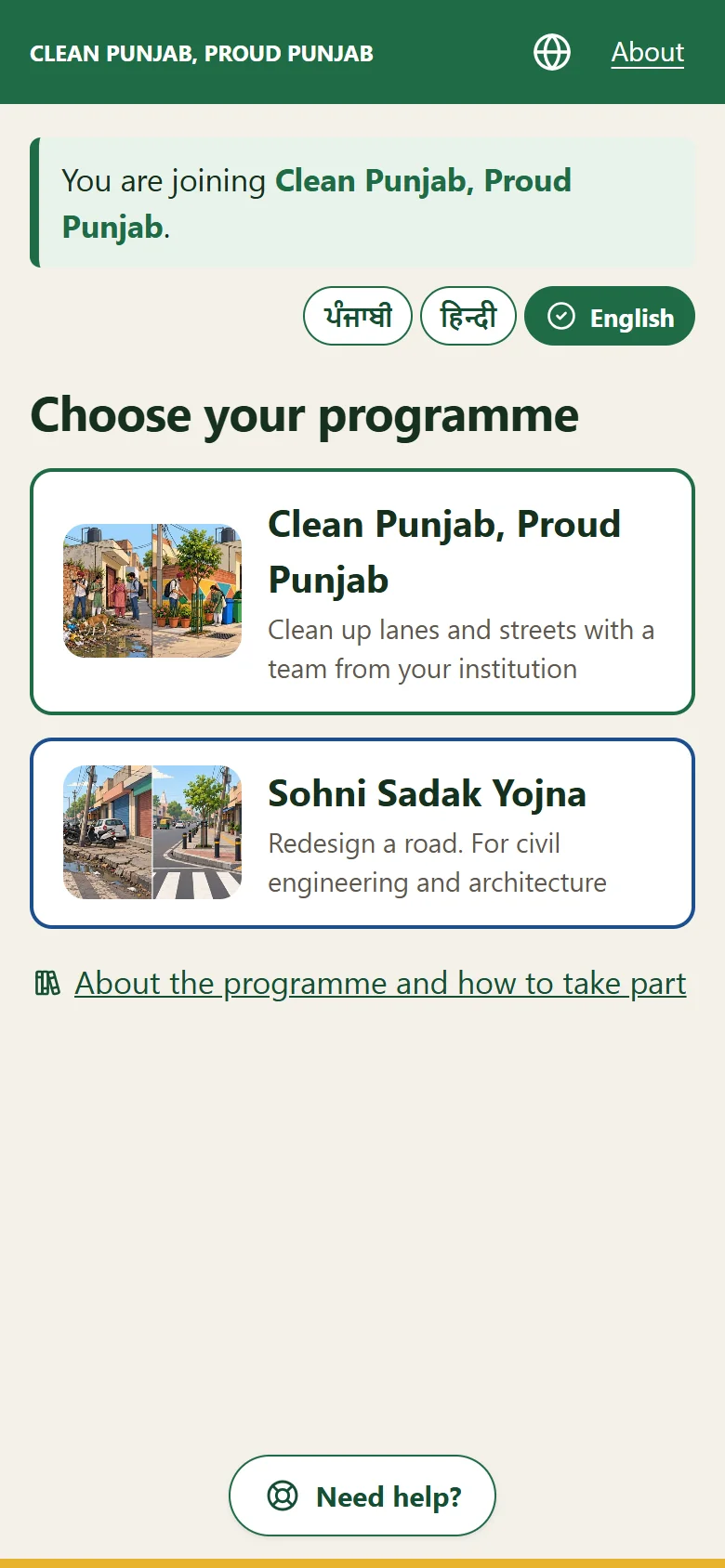
Choose your programme
Balwinder opens the portal and chooses the programme.
Tap Clean Punjab, Proud Punjab.
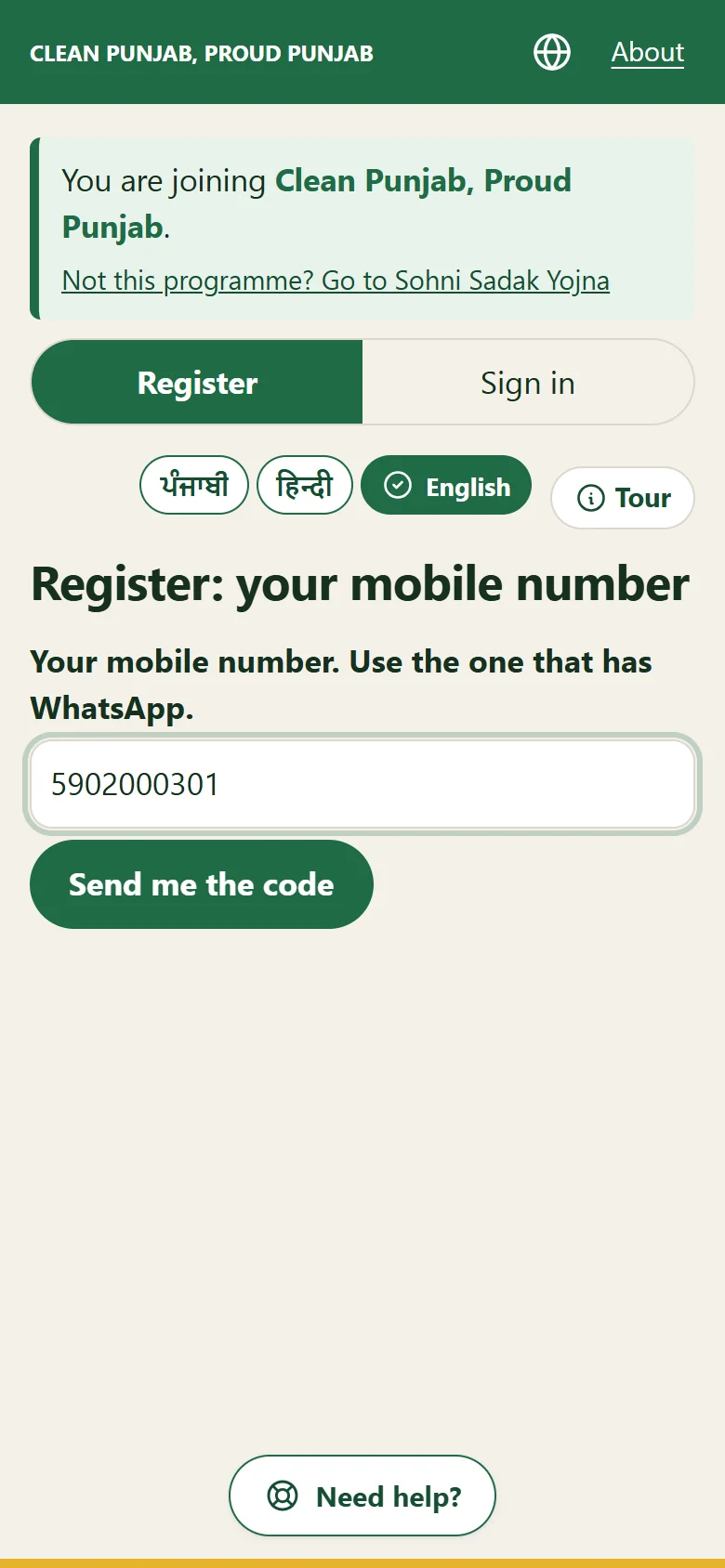
Your mobile number
It helps to use the number you use for WhatsApp, so that your supervisor's group can reach you.
Tap Send me the code.
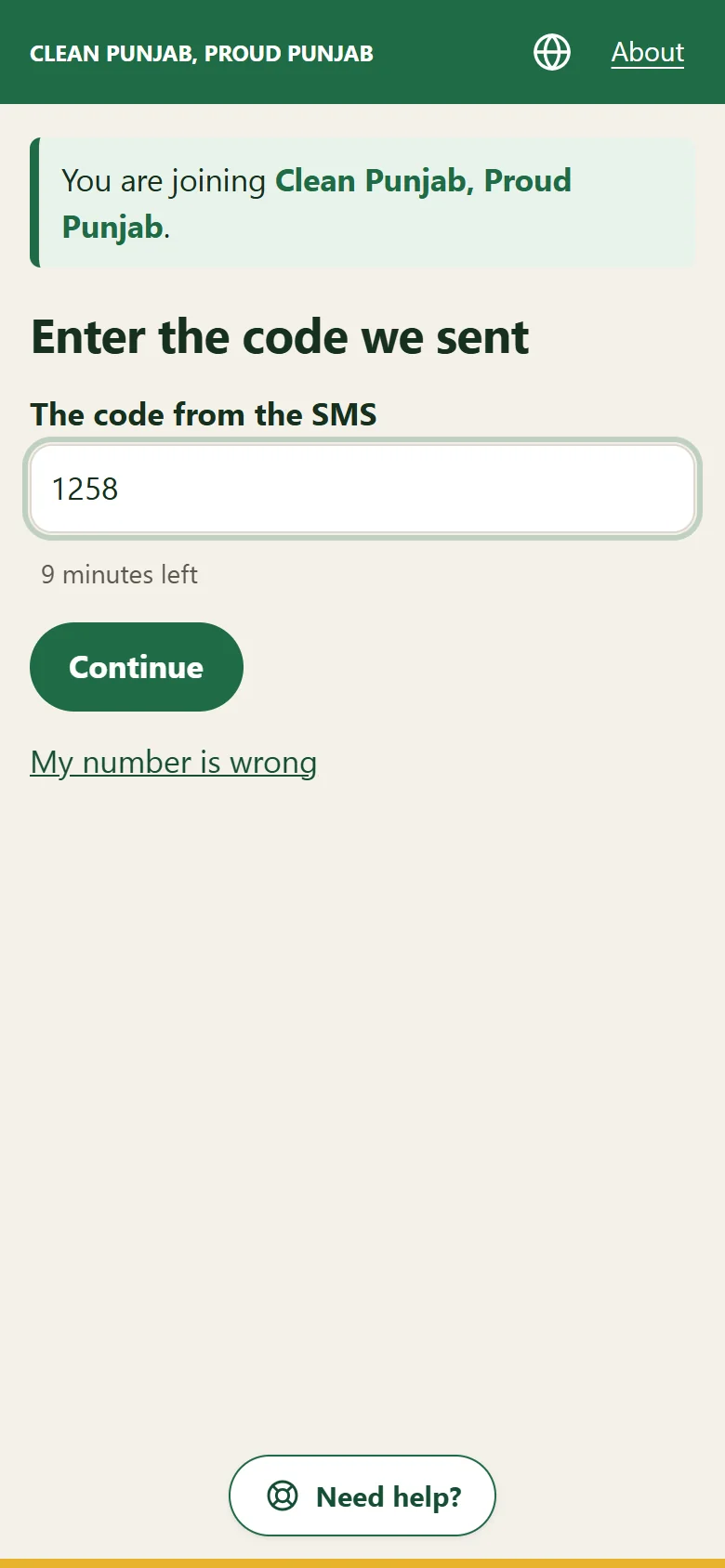
The code from the SMS
A code arrives by SMS, and Balwinder types it in.
Tap Continue.
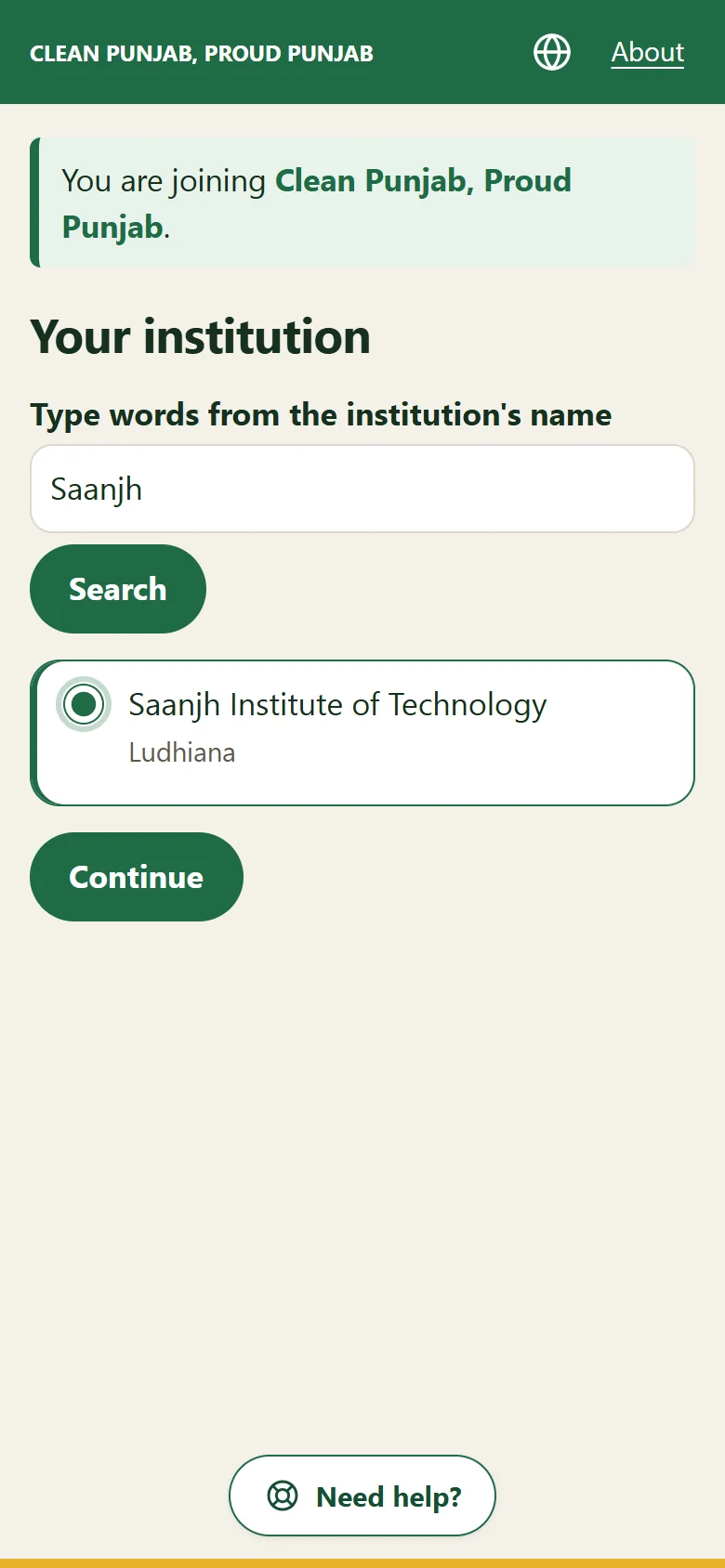
Find your institution
Balwinder types part of the institution's name and picks it from the list.
Tap Continue.
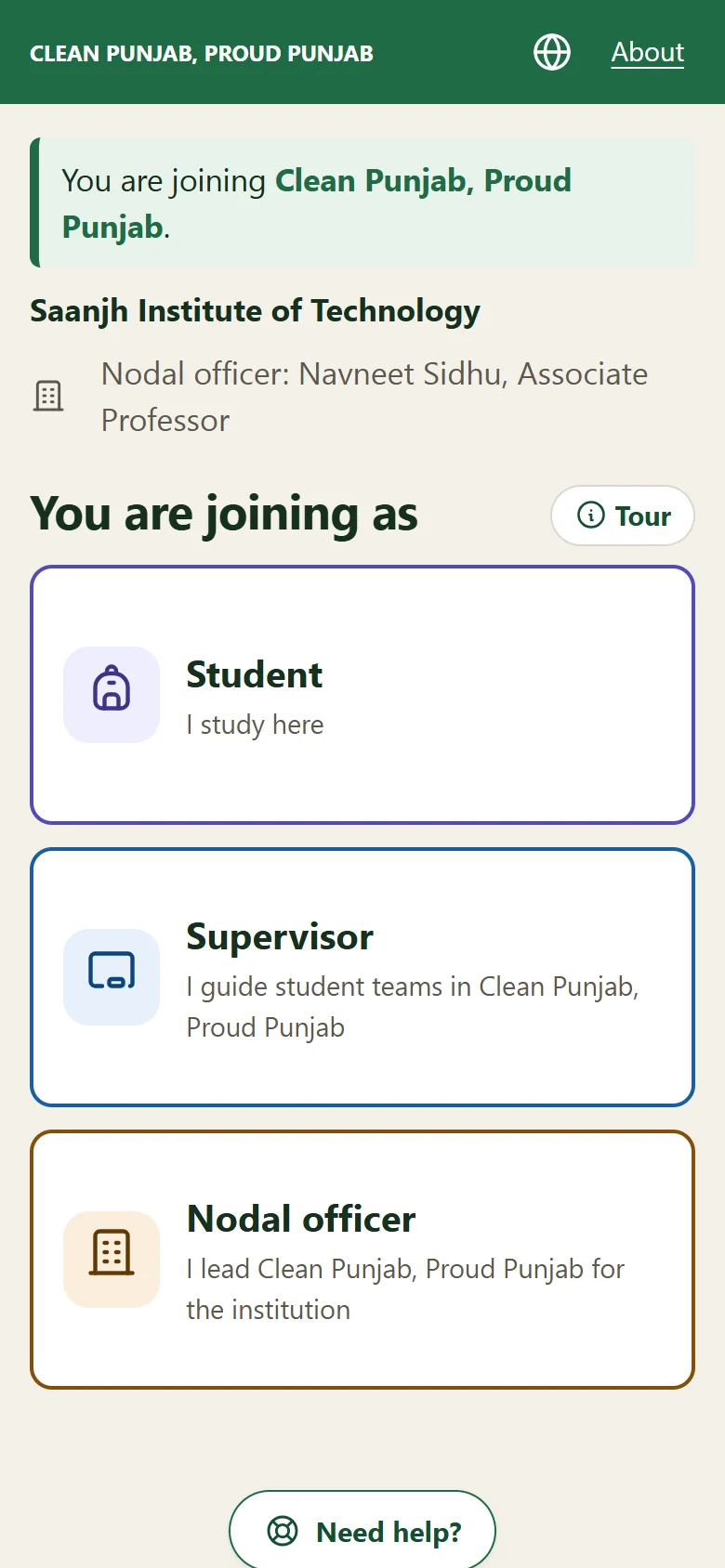
You are joining as
The page names the institution and its nodal officer, and asks Balwinder's role.
Tap Student.
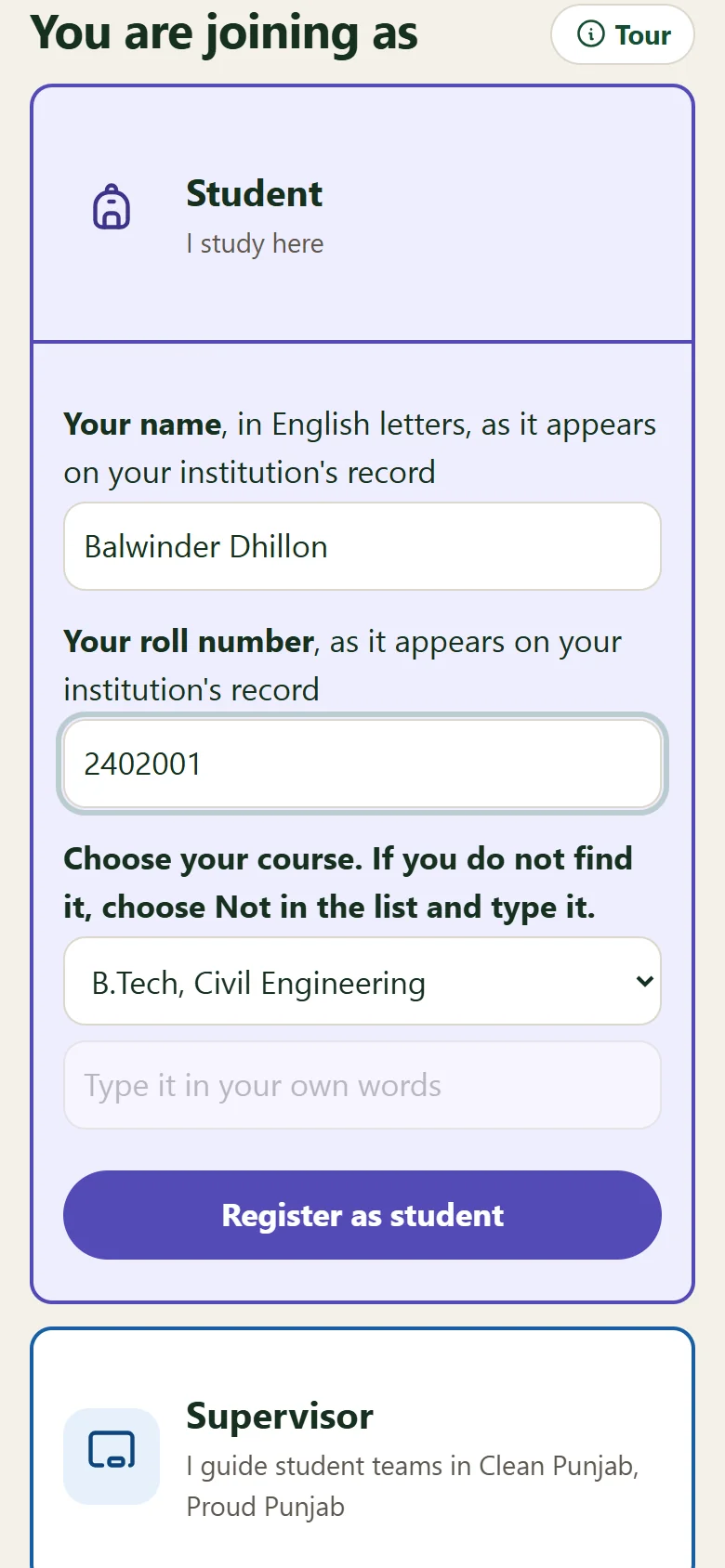
Your name, roll number and course
Balwinder gives the name and roll number as they are on the institution's record, and chooses the course.
Tap Register as student.
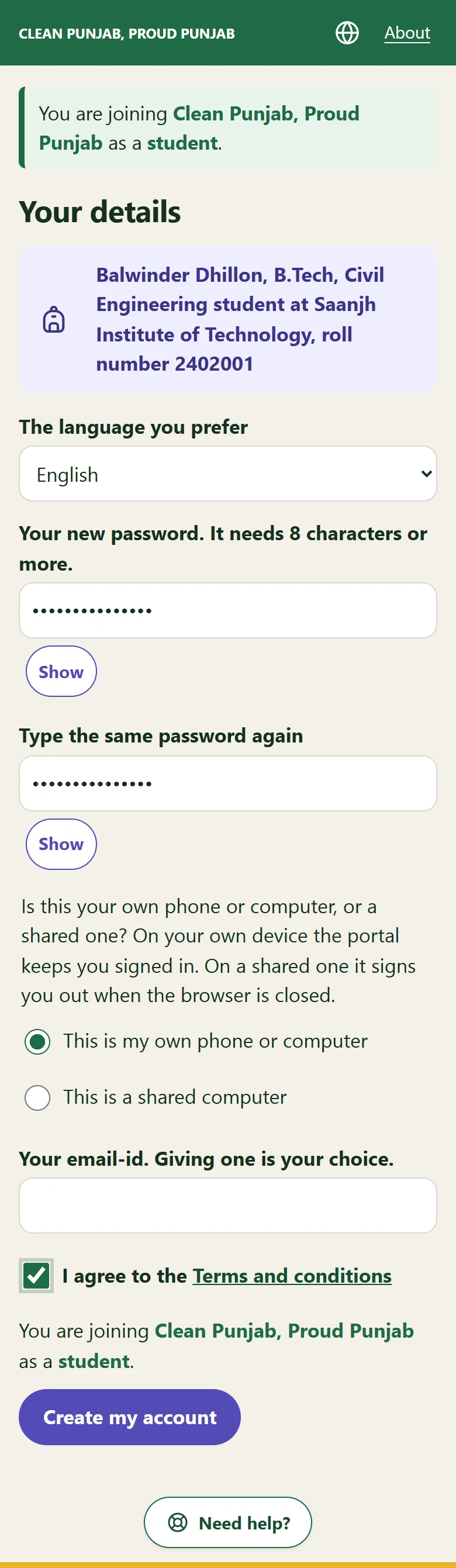
Your details
The line at the top says who Balwinder is: name, institution and roll number. Balwinder checks it and chooses a password. The phone is Balwinder's own, so This is my own phone or computer stays chosen.
Tap Create my account.
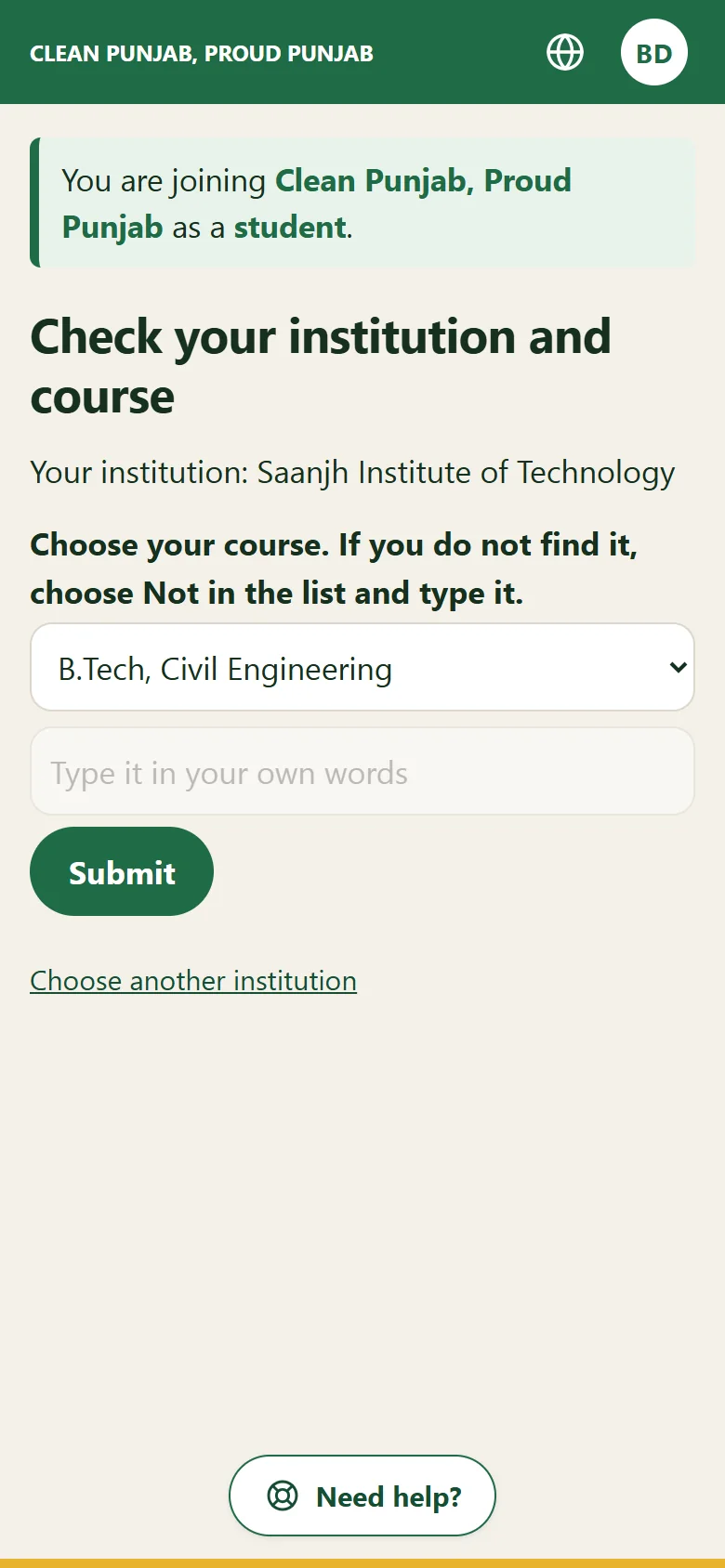
Check your institution and course
Balwinder checks the institution and course.
Tap Submit.
Joined at once
The roll number and name match the supervisor's list, so Balwinder joins at once.
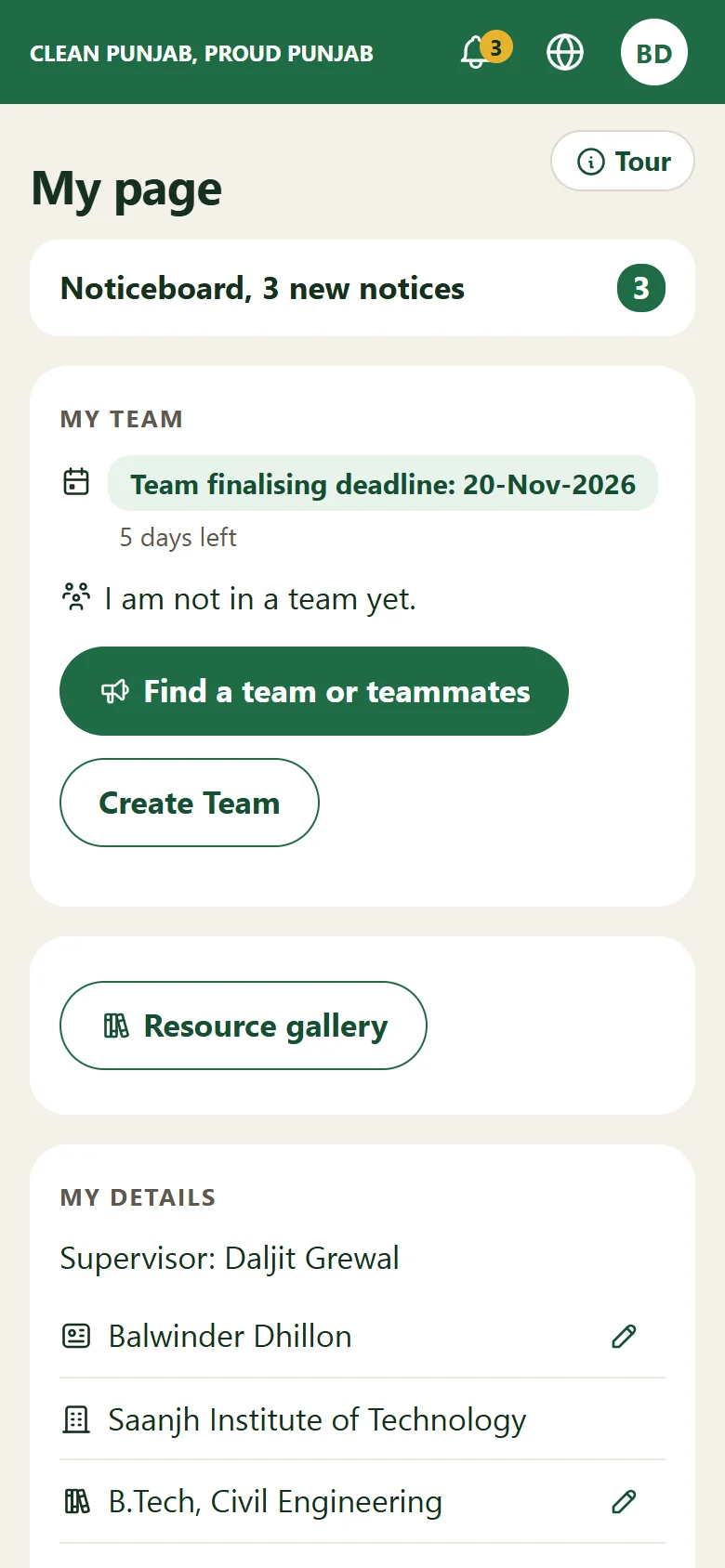
Balwinder has joined
You have joined. Next, join your supervisor's WhatsApp group and note the date.
In this topic (scroll down for more topics)
- 1Registering
- 2Choose your programme
- 3Your mobile number
- 4The code from the SMS
- 5Find your institution
- 6You are joining as
- 7Your name, roll number and course
- 8Your details
- 9Check your institution and course
- 10Joined at once
- 11Balwinder has joined
: topics
Back to the portal Back to the guide Home: choose another section
Link copied. Paste it into a message.